Showing posts with label VPC. Show all posts

Sunday, June 22, 2014

OpenSwan on AWS

A common use case for using a third party VPN solution such as OpenSwan is to connect two regions VPCs through the use of an IPSec VPN server.  
First, set up a VPC in both regions with, here is what I did:
Region 1 (US-West-2) - VPC 10.0.0.0/16 with private subnet 10.0.0.0/24
Region 2 (Australia)- VPC 172.0.0.0/16 with private subnet 172.0.0.0/24

==================================================================================================================

Configure the VPN server software for the EC2 instances - Region 1

==================================================================================================================

Step 1
------
sudo yum install openswan

Step 2
------
nano /etc/ipsec.conf

Step 3
------
sudo vi /etc/ipsec.d/vpc1-to-vpc2.conf

Step 4
------
conn vpc1-to-vpc2
 type=tunnel
 authby=secret
 left=%defaultroute
 leftid=<EIP1>
 leftnexthop=%defaultroute
 leftsubnet=<VPC1 CIDR>
 right=<EIP2>
 rightsubnet=<VPC2 CIDR>
 pfs=yes
 auto=start

Step 5
------
sudo vi /etc/ipsec.d/vpc1-to-vpc2.secrets

Step 6
------
<EIP1> <EIP2>: PSK "<TYPE A KEY HERE>"

==================================================================================================================

Configure the VPN server software for the EC2 instances - Region 2

==================================================================================================================
Step 7
------
sudo vi /etc/ipsec.d/vpc2-to-vpc1.conf

Step 8
------
conn vpc2-to-vpc1
 type=tunnel
 authby=secret
 left=%defaultroute
 leftid=<EIP2>
 leftnexthop=%defaultroute
 leftsubnet=<VPC2 CIDR>
 right=<EIP1>
 rightsubnet=<VPC1 CIDR>
 pfs=yes
 auto=start

Note the CIDR needs to include the block range. For example: 10.0.0.0/16

Step 9
------
sudo vi /etc/ipsec.d/vpc2-to-vpc1.secrets

Step 10
-------
<EIP2> <EIP1>: PSK "<TYPE THE SAME KEY FROM STEP 6 HERE>"

==================================================================================================================

Configuration in each region

==================================================================================================================

Step 11
-------
a-
sudo service ipsec start

b-
sudo chkconfig ipsec on

c-
sudo vi /etc/sysctl.conf

net.ipv4.ip_forward = 1

d-
sudo service network restart


==================================================================================================================

Test your connections

==================================================================================================================

Step 1 - Region 1
------
ping 172.0.0.50

Step 2 - Region 2
ping 10.0.0.50


Thursday, April 17, 2014

AWS Elastic Beanstalk and NAT instance

An Elastic BeanStalk launched in a VPC with a private subnet requires a NAT. Each instance needs to be able to talk to the Internet in order to answer the waitcondition. Connectivity can be provide through a NAT instance but there does have to be access to the internet.

The following show a VPC configuration with a private VPC. It is the connectivity to the Elastic Beanstalk end point that is needed. As you can see it is outside the VPC.

You can find more detailed instructions for creating and configuring a NAT instance here:

Wednesday, April 9, 2014

AWS Boston events coming soon

Here are some event that are happening in Boston the week of April 21:

Register today for the AWS Cloud Roadshow Series for SLED.

Sunday, March 30, 2014

AWS public and elastic IPs

If you launch an instance in EC2-Classic, it is assigned a public IP address by default. This is not an optional configuration.

If you launch an instance into a VPC, a public IP addressing feature is available for you to control whether your instance is assigned a public IP address. In the AWS console, there is a check-box called Assign Public IP to Auto-assign Public IP.The public IP address is assigned to the network interface with the device index of eth0. 

A public IP address is assigned to your instance from Amazon's pool of public IP addresses, and is not associated with your AWS account. When a public IP address is disassociated from your instance, it is released back into the public IP address pool, and you cannot reuse it.

Whether you assign a public IP address to your instance during launch or not, you can associate an Elastic IP address with your instance after it's launched. 

Thursday, January 9, 2014

VPC benefits over EC2 classic

Here are some of the reasons why you would use VPC instead of EC2 classic for your Oracle instances:
  • Predictable internal IP ranges: You define the IP address range of your VPC as opposed to your IP address being part of the AWS region IP address range.
  • Subnets : Logically group Amazon EC2 instances into a private or public subnets and assign them private IP addresses.
  • Traffic Routing : Control the outbound/egress traffic from your Amazon EC2 instances (in addition to controlling the ingress traffic to them; EC2 Classic security groups are ingress only) and provide selective internet access to instances.
  • Network ACLs : Additional layer of security to your Amazon EC2 instances in the form of network Access Control Lists (ACLs). These allow for deny rules instead of just allow rules that security groups have.
  • VPN Connectivity : Connect your VPC to corporate data center and on-premise infrastructure with a VPN connection, so that you can use Amazon VPC as an extension of your existing data center network,
  • DHCP options: DHCP option sets let you specify the domain name, DNS servers, NTP servers, etc. that new nodes will use when they’re launched within the VPC. This makes implementing custom DNS much easier. In EC2 you have to spin up a new node, modify DNS configuration, then restart networking services in order to gain the same effect. 
  • Multiple IP's per MAC address: The Elastic Network Interfaces (ENI) is a virtual network interface that can include the following attributes :
    • a primary private IP address
    • one or more secondary private IP addresses
    • one Elastic IP address per private IP address
    • a MAC address
    • one or more security groups
    • a source/destination check flag
    • a description
  • Multiple ENIs per instance: Attach multiple Elastic Network Interfaces (ENI) to each instance for multiple MAC addresses.
  • Moving ENIs (MAC and IP addresses) between instances :  ENI's attributes follow the ENI as it is attached or detached from an instance and reattached to another instance.

Monday, December 9, 2013

Redshift example

This a great place to get started with Redshift: http://docs.aws.amazon.com/redshift/latest/gsg/getting-started.html.  There are a couple of pieces of information in the step by step instructions I wanted to elaborate on:
1. Creating a cluster subnet group is done in the Redshift area of the console as seen below. This is not evident in the instructions:


This of course assumes a VPC with two public subnets and a route to an IGW has been created.

2. The copy command is issued from SQL Workbench.copy venue from 's3://awssampledb/tickit/venue_pipe.txt' CREDENTIALS 'aws_access_key_id=<your access key>;aws_secret_access_key=<you secret key>' delimiter '|';

3. Make sure to set auto commit otherwise you need to commit each statements or block of statements and the example does not have commit commands.


Thursday, December 5, 2013

Migrate EC2 instance from EC2-Classic account to EC2-VPC account

Here is the process to move a one EC2 instance from an EC2-Classic account to an EC2-VPC default account.

Create VPC
Note: since this is a new account, it will have a VPC by default. It will have one VPC, 3 subnets, 1 Network ACL, 1 Internet Gateway, 1 Route table by default. vpc-bb55bbd0 is the default VPC. 

We can use the default VPC or create a new one as well.

1. Create the VPC

a.     Click the Your VPCs link
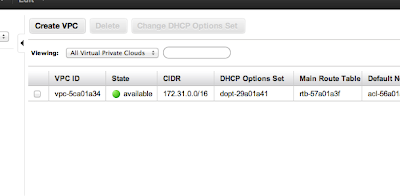
b.     Click the Create VPC button. (you will see your default VPC already created)
Note the VPC ID: vpc-e7262c85
c.     In the Create   VPC dialog box, enter a CIDR Block of 10.50.0.0/16.


d.     Click Yes, Create.
2 .     Create four subnets : two public and two private subnet. Want to so we can have a  Active-passive failover scenario. We will only use the two public subnets to start as there is no database back end.
Create Public Subnet in First AZ
a.     Select the Subnets link from the left hand menu.
b.     Click the Create Subnet button.


c.     Ensure that the VPC is set to the one created earlier.
d.     Choose an Availability Zone.
e.     Specify a CIDR Block of 10.50.1.0/24.
f.      Click Yes, Create.
Note : First public subnet: subnet-599d963b
3. Create Public Subnet in Second AZ
a.     Select the Subnets link from the left hand menu.


b.     Click the Create Subnet button.
c.     Ensure that the VPC is set to the one created earlier.
d.     Choose an Availability Zone.
e.     Specify a CIDR Block of 10.50.2.0/24.
f.      Click Yes, Create.
Note : Second public subnet: subnet-10714464

4. Create first private Subnet in First AZ
a.     Select the Subnets link from the left hand menu.
b.     Click the Create Subnet button.


c.     Ensure that the VPC is set to the one created earlier.
d.     Choose an Availability Zone.
e.     Specify a CIDR Block of 10.50.10.0/24.  (I jumped up to 10 to give more room for public subnet expansion on first AZ and started with 10 so all subnets in first AZ start with one).
f.      Click Yes, Create.
Note : First private subnet: subnet-389d965a

5. Create second private Subnet in second AZ
a.     Select the Subnets link from the left hand menu.
b.     Click the Create Subnet button.

c.     Ensure that the VPC is set to the one created earlier.
d.     Choose an Availability Zone.
e.     Specify a CIDR Block of 10.50.20.0/24.  (I jumped up to 10 to give more room for public subnet expansion on first AZ and started with 10 so all subnets in first AZ start with one).
f.      Click Yes, Create.
Note : Second private subnet: subnet-fe71448a


6.     Create Internet Gateway
a.     First step: Create Internet Gateway
b.     Then attach to VPC
Created : igw-9d0903ff
4.     Create route table for public subnet. Note: We will not create one for the private subnets at this time as no instances in them.
a.     Create a route table for the VPC


b.     Add the public route to the internet gateway to the route table


                                               i.     Add a route with a Destination of 0.0.0.0/0 and with Target set to the Internet Gateway.

c.      Associate the First public subnet: subnet-599d963b to the route table

d.     Associate the Second public subnet: subnet-10714464 to the route table


58.     Create Elastic IP : 54.201.96.147
69.     Create Security groups : ELB, WebTier
a.     ELB : Add a rule that allows TCP port 80 (HTTP) from 0.0.0.0/0 (everywhere, including the Internet). sg-c8a3b5aa


b.     WebTier  sg-58adbb3a


710.     No need to create NAT and route NAT to the Internet Gateway as have nothing in private subnet at this time.


Create ELB


1. Create ELB


2. Add health check


13.     Add subnets and security groups


Launch Instance


1.     Could not use the AMI from the old account as was not valid. 
2.     Launched instance from AMI eligble for free tier.
3.     Created snapshot of EBS root volume in old account
4.     Gave permissions on new account to snapshot – snap-8fd359b4
5.     aws ec2 describe-snapshots --snapshot-ids snap-8fd359b4
6.     aws ec2 create-volume --snapshot-id snap-8fd359b4 --size 8 --availability-zone us-west-2a
7.     aws ec2 describe-volumes --volume-ids vol-41a11c68
8.     aws ec2 stop-instances --instance-id i-c12ca6f7
9.     aws ec2 detach-volume --volume-id vol-2ba51802
10.  aws ec2 attach-volume --volume-id vol-41a11c68 --instance-id i-c12ca6f7 --device /dev/sda1
11. aws ec2 start-instances --instance-id i-c12ca6f7
13. need to attach to ELB. I did this in the console
14. Needed to start apache as forgot to include in user data: sudo /etc/init.d/httpd start
15. Test on Elastic IP address : 54.222.94.234 (worked so closed HTTP on instance for 0.0.0.0/0)
17. Test running instance before migrating route 53: LoadBalancer-788377229.us-west-2.elb.amazonaws.com

Migrate Route 53


1.     Create hosted zones
2.     Create record sets
3.     Go to your domain name registry (in this case godaddy) and launch (godaddy terminology) your domain name to set your Nameservers.  Use the four name services/delegation set retrieved in step 1.

Decommission the old account 

1.     Spin down EC2 instance
2.     Decommision Route 53
3.     Delete all EBS volumes and snapshots